
New 'Visions' for the viewer


Play
Falling asleep in the office because you stayed up to watch a 3am football match on the TV? Now you can record the action and watch it over breakfast
True Visions has launched a new add-on service that allows subscribers to easily record its TV programmes for viewing whenever it suits them.
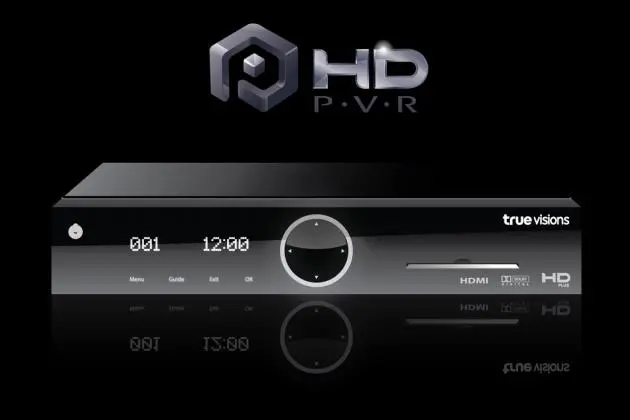
The service is called HD PVR, named after True Visions’ HD channels and its HD Plus receivers.
There are two types of HD Plus receivers – satellite and cable receivers. Users of HD Plus satellite receivers get three HD channels, including HBO HD and True Sports HD. Users of HD Plus cable receivers do better, getting 12 HD channels to watch and record.
To use the HD PVR service, a True Vision subscriber must pay a recording fee for Bt99 a month on top of its subscription fee.
To start using the service, you will need to attach an e-SATA external hard drive box to the e-SATA port of an HD Plus receiver. True Visions sell an external e-SATA hard drive set with 500 GB storage for Bt4,780. This capacity allows you to record HD movies for up to 84 hours or standard definition programmes for up to 340 hours.
If you buy the e-SATA hard drive set from True Visions before the end of April, you will be exempted from the HD PVR fee for three months.
Or you can just buy an e-SATA hard drive case from True Visions for Bt1,190 and buy a hard drive to use the case on your own. The case uses a 2.5-inch hard drive, which is the same type used for a notebook computer. True Visions recommends you to use a Western Digital or Seagate hard drive with spinning rate up from 5,400 rounds per minute. The more space hard drive, the longer you can record the subscription TV programmes.
The hard drive case distributed by True Visions is Orico’s 2598SUS model. It has both e-SATA and USB ports.
I tested the HD PVR service using the HD Plus satellite receiver with a Samsung SMT-S5260 model.
During the test, I found it was easy to set up and start using the HD PVR service. The Orico hard drive case came with two cables – e-SATA and USB cables. I connected the e-SATA cable from the hard drive case to the back of the Samsung receiver for data transfer and then used the USB cable to connect the hard drive box to the USB port of the Samsung receiver to draw power for the hard drive box.
The HD Plus receiver, noticing that an e-SATA hard drive has been connected, prompted me to press the “OK” button on the remote control to format the hard drive for the first use. The HD Plus receiver then checked my access with my subscription smart card to see if I was eligible to use the HD PVR service and then the service was ready. The process took just a few minutes.
The remote control of the HD Plus receiver has record and play buttons similar to the remote control of a DVD player. There is also a PVR button for accessing the service, checking the progress records, the remaining hard disk space and playing back the recorded programmes.
It’s very easy to record a live programme or a movie you are watching: just press the red record button.
The beauty of the HD Plus receiver and HD PVR service is that once you start recording a programme, you can switch to watch another channel. This is because the HD Plus receiver has two tuners inside. You can even record two programmes at the same time but you must watch one of the programme being recorded.
While recording a programme, you may turn off the receiver though you’ll need to keep it plugged to the power socket because the recording can only be made when the receiver is in the standby mode. This feature is very useful if you want to record something that’s on while you are sleeping.
Recording a programme or even an entire series makes the HD PVR service very useful for subscribers who may not be free to watch the programmes while they are on air.
You use the online programme schedule by pressing the “Guide” button on the remote control and moving the cursor to the programme you want to record. Then, you just press the record button to “book” it for recording when it is on air.
If the programme is a series, you can press the record button twice to tell the HD Plus to record the entire series whenever the series is on air. This is very convenient if you do not have time to monitor the series all the time.
To play the recorded programme, simply press the PVR button and the HD Plus receiver will show PVR service screen with two tabs. You’ll find the recorded movies on the “Record” tab and you can monitor the progress of the programme being recorded or the recording schedule on the “Book” tab.
For example, if you order the recording of the entire NCIS 9 series, the Book screen will show the schedules of the series.
The PVR screen will also show the remaining space of your hard drive in term of hours left.
The PVR service screen also allows you to delete a recorded movie that you have already watched to save space on the hard drive.
And when playing back a recorded movie, you can fast forward the movie up to 30x speed or go back ward at the 30x speed as well.
If you have subscribed to True Visions with more than one spot, you can move the hard drive to play at another viewing spot as long as it uses the same subscription number.
Another feature, which is very useful, is that when you are watching a live programme, like a live football match, you can press the “Rewind” button on the remote to go back to watch the program 30 minutes earlier without having to record it first. When you press the Stop button, the HD Plus receiver will ask if you want to catch up with the live programme at the moment.
The HD PVR service is available for subscribers of True Visions’ Gold and Platinum packages, who have already changed set-top boxes to HD Plus receivers.
Key facts:
HD PVR monthly service fee: Bt99
Required: External 2.5-inch e-SATA hard drive
500 GB external e-SATA drive from True Visions: Bt4,780
External e-SATA case from True Visions: Bt1,190.
