
Functionality with plenty of pizzazz


Play
Samsung rivals the iPad with the gorgeous Galaxy Note 10.1
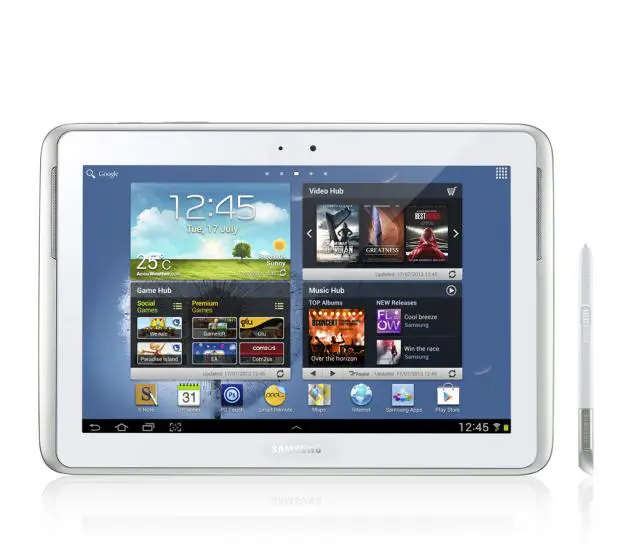
Agorgeous tablet computer with useful multi-screen capability, the Samsung Galaxy Note 10.1 comes with an S Pen stylus, which just adds to the fun.
It has a 10.1-inch 16-million colour depth TFT LCD display with 1,280 x 800 pixel resolution and is powered by 1.4 GHz quad-core processor. The Note 10.1 runs Google Android 4.04 operating system and supports HSPA+ 3G connection of 850/900/1,900/ 2100 MHz – so all major 3G operators in Thailand. I tested it on TrueMove H’s HSPA+ network and I was impressed at the speed of downloading and installing applications, updating my Facebook status and posting snapshots to my Facebook and Instagram pages.
Its multi-screen and multitasking capabilities are very useful especially if you need to research web pages while working on a project or drafting an idea. It uses 2 GB of RAM to make the multi-screen and multi-tasking functions smooth.
You can access different apps while keeping the original application open for constant reference. For example, when you use the S Note application to write or work on your project, you can hit the Multi-Screen button and open a web page to check for information. You can also use the S Pen stylus to capture the screen of the web page and use the pre-loaded image editing application to crop the screenshot and drag the portion you want to the screen or your S Note application. You can also use the Multi Screen option to watch a movie while surfing web pages.
During the test, I did not feel any performance hiccups when using the multi screen function or while watching a video on one screen and surfing web pages on another.
The S Pen stylus makes use of Note 10.1 fun and allows the tablet to be a powerful creation tool. You can use the S Pen to draw, sketch and take notes on the virtual note papers with precision.
The S Pen is embedded on the right corner of the screen. When you slide it out, Note 10.1 slides up a menu on the right side of the screen, allowing you to select one of applications that can be used with the stylus.
One of the applications designed for making most of the S Pen is the S Note. Apart from allowing you to instantly jot down your ideas, S Note also lets you create your own digital publishing using one of seven S Note templates. The seven templates are Note, Idea Note, Meeting Note, Magazine, Diary, Recipe and Travel.
When you draw a sketch on S Note, you can change the pen type, the line thickness and the pen colour. The drawing is also pressure sensitive.
You can add a multimedia file to the S Note page you are working on, for example a photo or a sound clip – or record your voice to attach to the S Note page.
The S Note also has some useful productivity tools. One of them is Formula match that lets you convert a handwritten formula to a well-organised formula.
Another is Shape match that converts shapes you have drawn to circulars or other shapes.
You can also use the Handwriting-to-Text to convert a handwritten note to a text file.
The S Note and S Pen provide you with a quick and efficient way to communicate to your Facebook friends or email contracts. Instead of typing on the on-screen keyboard, you can write then save the S Note page as an image file and mail it to your friends or post it to your Facebook Wall.
During the test on TrueMove H’s 3G network, I wrote a message while on the bus reporting on the current traffic situation and post it to my Facebook Wall to alert my friends.
You can also use the Note 10.1 to take photos and use the S Pen to write a message on the photos before posting them to your friends.
Or you can use the S Pen to capture the screen of your current location on the Google Maps to let a friend now exactly where you are.
The S Pen also makes it very convenient to capture the current screen. You simply press the S Pen button and then tap and hold the screen to capture it. Then, you can draw or write on the captured image or crop it.
You can also use the S Pen as a quick navigation tool. For example, you can press the S Pen button and drag the S Pen to the left to return to the previous screen. Or you can press the S Pen button and drag the S Pen down to open a list of options available on the current screen.
Note 10.1 comes preinstalled with PS Touch that allows you to use Photoshop features, such as layers, selection tools and adjustments. It’s easy to combine multiple images then apply filter effects with Note 10.1’s 5 megapixel camera.
The test found that Note 10.1 took sharp and clean photos in a well-lit environment. I had no problems posting the images to my Facebook wall and Instagram page using the TrueMove H service.
It also recorded smooth and clean HD video clips.
The Note 10.1 can also function as a good media player. It played HD video smoothly and beautifully.
I listened to music on the tablet using my Sony premium in-ear earphones and was impressed in the music quality.
And the Note 10.1 can even function as a giant phone. You can make voice call using either a headset or the built-in speakerphone feature.
Samsung Galaxy Note 10.1 comes in a choice of white and grey. It retails for Bt21,900.
Key specs
_ Platform: Android 4.0.4
(Ice Cream Sandwich)
_ Networks: GSM & EDGE Band: 850 /
900 / 1,800 / 1,900MHz; 3G Band:
850 / 900 / 1,900 / 2,100MHz
_ Processor: 1.4GHz
quad-core processor
_ Memory: 2GB RAM
_ Storage: 16 GB, expandable
with microSD up to 32GB
_ Display: 10.1-inch 16M colours WXGA
TFT LCD with 1280 x 800 pixel
Resolution
_ Camera: 5 Megapixel rear camera
and 1.9 Megapixel (front-facing) camera
_ HD Video Player: (1080p @ 30fps)
H.263, H.264, ASF, MPEG4, WMV,
AVI, DivX
_ Video Recording: (MPEG4, H.264, 3gp
format) 720p @ 30fps (1280x720)
_ Connectivity: Bluetooth v4.0, USB,
WI-FI 802.11a/b/g/n, TV-Output:
AllShare Cast and HDTV output, PC
Sync Application (Kies), 3.5mm Earjack
_ Battery: 7,000 mAh
_ Dimension: 262 x 180 x 8.9mm
_ Weight: 600 g
